
Register your domain
Let’s demonstrate how you can register your own domain.
Think about the name of your domain because you will use it during your studies to build a portfolio. An url like http://party-animal-4-life.be does not look very professional in a job interview.
Request your free license
Section titled “Request your free license”You can request a license through the academic software website so that you can register your domain for free with Combell.
Navigate to Academic Software, enter your Howest e-mail address and click Login
Search for the Combell Webhosting.
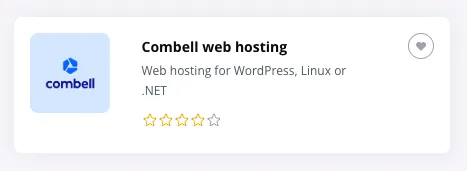
Click on Request to get a license. Write down or store the code that appears on the screen, you will need it in the next step.

Register the domain
Section titled “Register the domain”Navigate to Combell Business.
Choose an url followed by .be or .com
The licence is valid for .be AND .com domains. The name is without spaces and all characters are in lowercase.
You cannot change this name, so think about the url you pick for yourself.

Add the domain if it’s still available. Otherwise, you need to try a different name. You do not need to add other extensions such as .app, … because you will be charged for most of them.
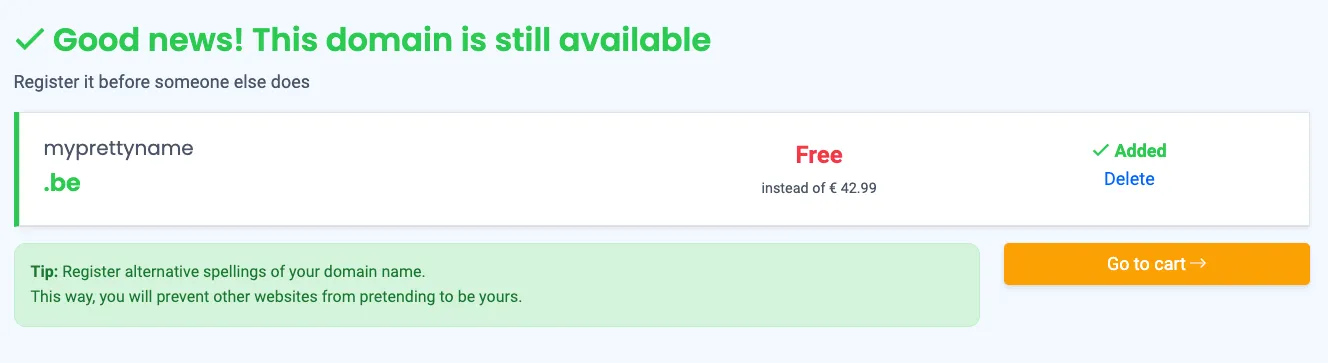
Go to cart & complete your order You see an overview of your order. Just click the Complete your order button.
Don’t worry about the price, you will be able to use your promotional code in the next step.

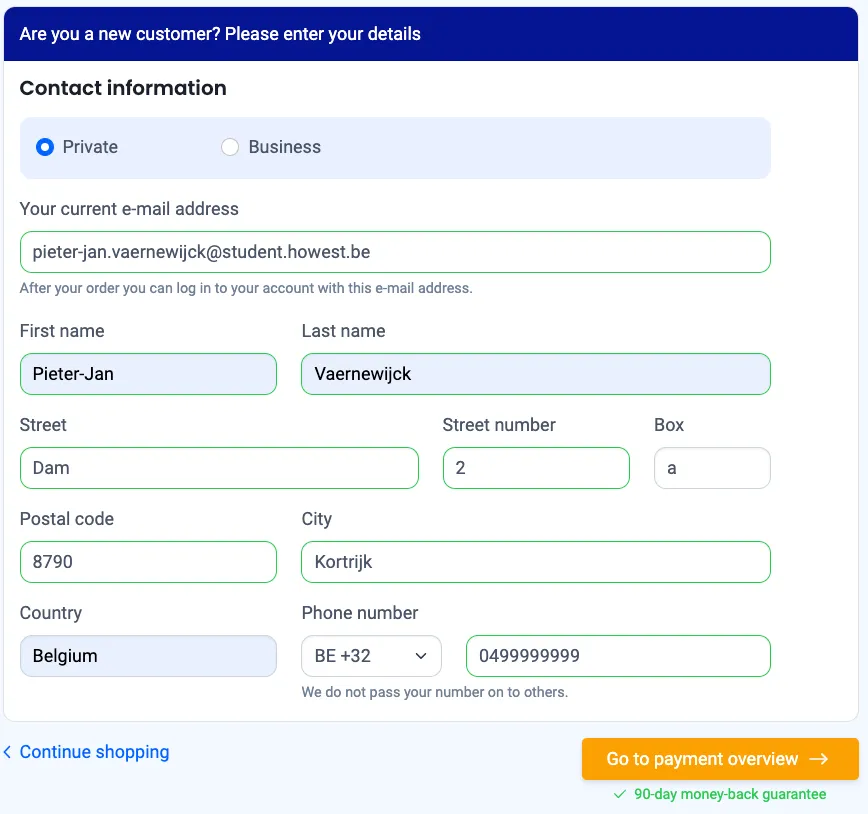
Enter your contact information. Make sure your e-mail address is your howest e-mail. Go to payment overview.
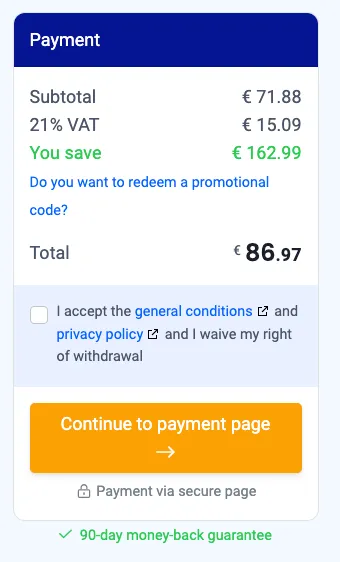
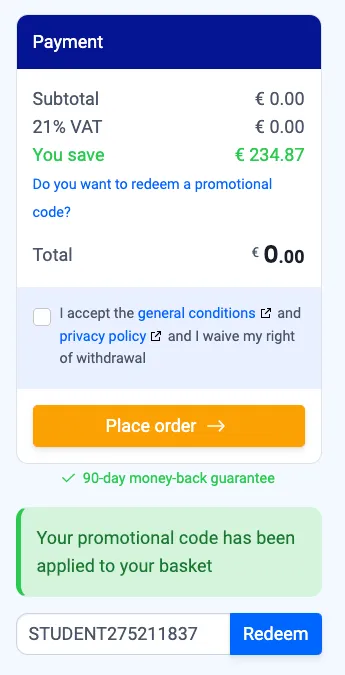
Click redeem a promotional code. Enter the code you obtained in the first step. The cost will magically reset to 0. Finally, check the mark for accepting the general conditions. Place order.
Check your mails
Section titled “Check your mails”You normally receive 3 mails from Combell. The most important one is the mail that asks you to set a password for your combell account.
If you didn’t recieve these mails after a while, you have the call Combell’s support center.
-
Combell Sales → Thank you for your order - …
- This is just a confirmation of your order. You do not need any further information from that mail.
-
Combell Support → Set a password for your Combell account
- Click on the link in the mail and set a password for your Combell account.
-
Combell Support → You Combell hosting is ready to use
- This contains a link to your hosting dashboard.